PC keeps shutting down while gaming
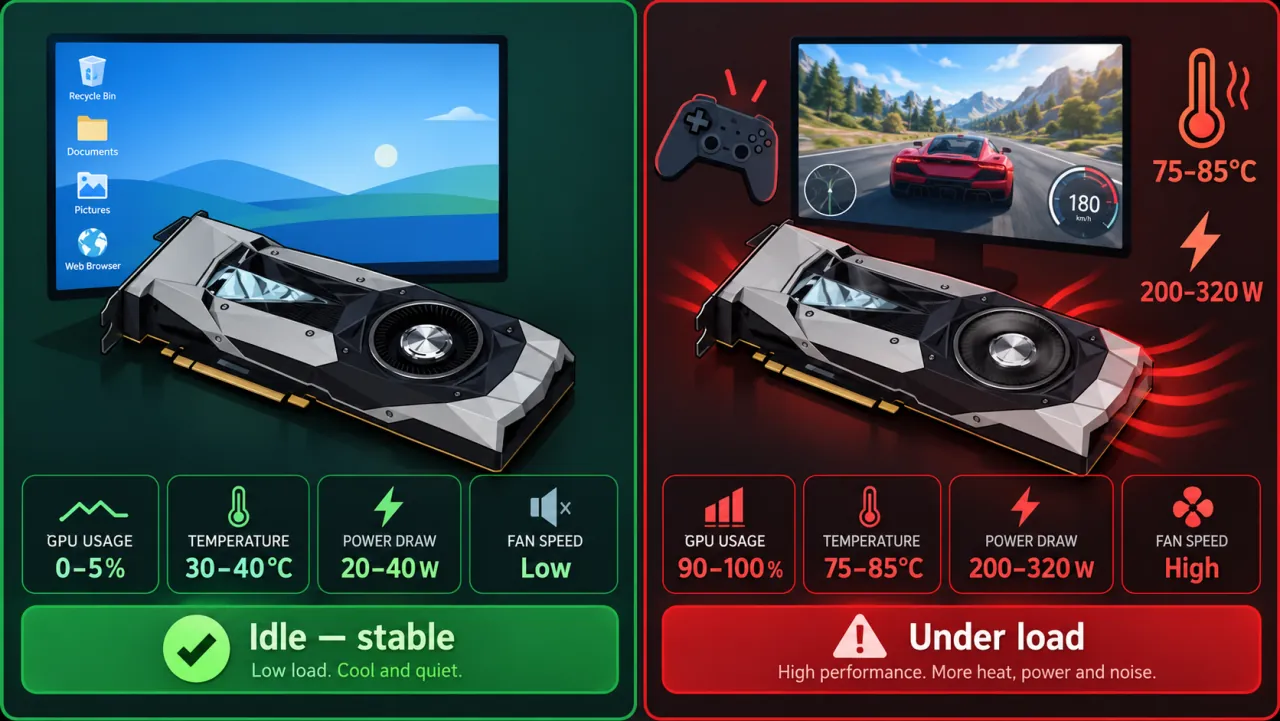
Shutdowns that appear only in demanding games usually mean the system hits a power or thermal limit under GPU/CPU load. Separate heat from PSU headroom before chasing FPS tips.
Step 1 — Reproduce with a controlled load
- Confirm browsing, office apps, and video playback stay stable for at least 10–15 minutes.
- Note settings that change load: resolution, ray tracing, DLSS/FSR, frame-rate caps, and whether a second monitor is active.
- Reproduce once with a short GPU/CPU stress tool or one demanding in-game scene you can repeat.
- After the blackout, boot Windows and open Event Viewer for Kernel-Power Event ID 41. Note BugcheckCode if any.
Lower one setting at a time. If lower presets stay stable, treat as heat or power under peak GPU draw.
Still branch on temps vs hard power-off — but also reseat GPU power cables before replacing parts.
Step 2 — Branch: temperature vs power
Improve cooling — overheating. Lower graphics presets temporarily to confirm.
Step 3 — GPU power connectors and driver
- Power off and unplug. Reseat every PCIe power plug on the GPU until the latch clicks. When the card needs two or more connectors, use separate cables from the PSU — do not daisy-chain one cable across all plugs unless the PSU maker says that cable is rated for it.
- Confirm the 24-pin and CPU power cables are fully seated (loose CPU power can show up under gaming load).
- Install the current GPU driver from NVIDIA, AMD, or Intel only. If shutdowns started right after a driver update, roll back in Device Manager or clean-install the previous vendor package (Device Manager guide).
- Disable motherboard/GPU overclocks, memory XMP/EXPO experiments, and “performance” BIOS presets while you test. Return to stock clocks first.
Do not download “driver packs” or third-party one-click fixers. Prefer the GPU vendor’s installer and your board maker’s chipset package.
Step 4 — Next pages
Symptom map
- PC shuts down randomly (start here)
- Check Event Viewer for Kernel-Power 41
- Overheating and thermal shutdown
- Shuts off but not overheating
- Shuts down while gaming
- Power supply keeps shutting off
- Laptop turns off without warning
- Shuts down and restarts
- Turns on then immediately shuts off
- Monitor turns off but PC stays on
- PC will not shut down
- Shut down because of a problem
FAQ
Why does my PC keep turning off while playing games?
Games raise GPU and CPU power draw. That exposes weak cooling, marginal PSUs, or loose GPU power cables that idle use never stresses.
Why does my PC keep crashing while gaming?
Crashes to desktop or BSOD differ from a hard power-off. For hard offs, use Event Viewer plus temp/PSU branches; for Stop codes, keep the bugcheck code.
How to tell if PSU is fried?
Load-only shutdowns with normal temperatures and recovery after a known-good PSU swap — details on the PSU page.
Should I undervolt or limit FPS to stop shutdowns?
Lowering peak power can confirm a heat or supply limit, but it is a test — not a substitute for fixing cooling or a weak PSU. Cap FPS or use a power limit briefly to see if the hard-off stops, then finish the heat and PSU branches.
Do I need a new graphics card?
Not as the first step. Reseat power cables, restore stock clocks, update/roll back the vendor driver, and prove cooling or PSU first. Replace the GPU only after a known-good power path still fails under the same load.