Your computer shut down because of a problem
This page covers the Mac startup notice after an unexpected shutdown or crash. It is not a Windows Event Viewer guide.
Step 1 — Confirm the Mac message
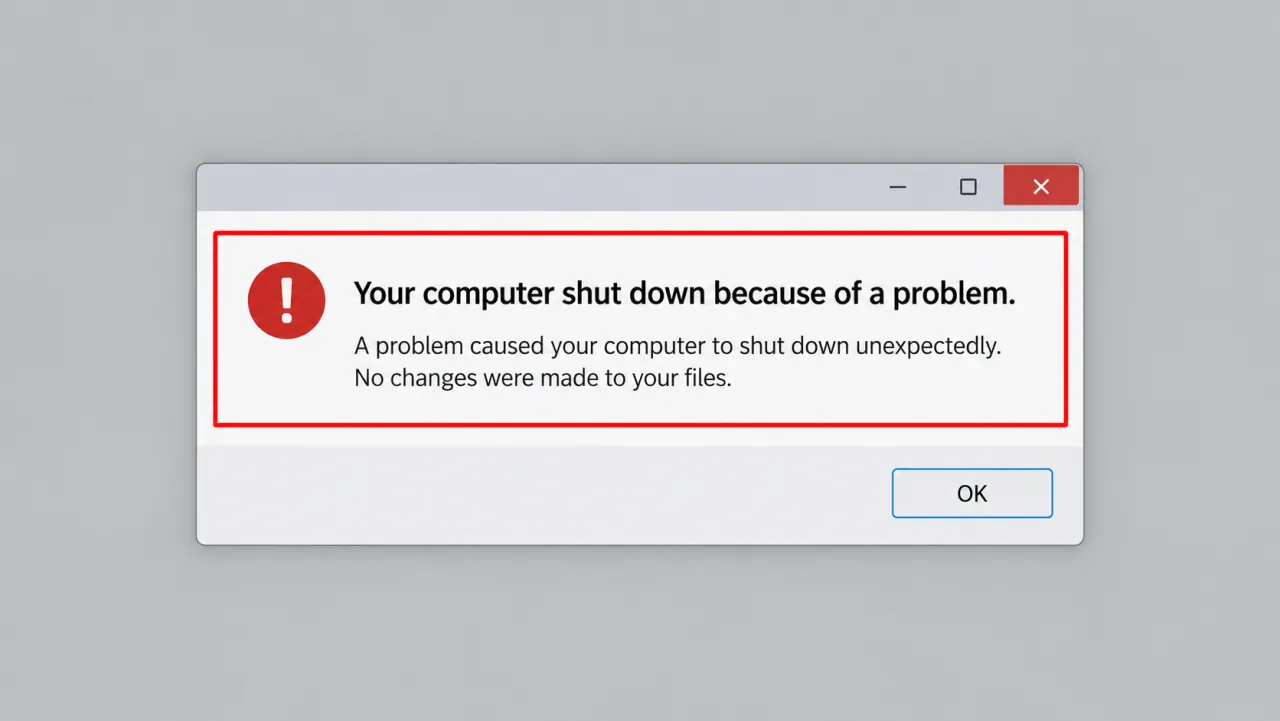
After power-on you see a dialog that your computer shut down or restarted because of a problem. Apple treats unexpected restarts as usually software- or accessory-related, with hardware checks if those fail.
- Note whether it happens once after a force-power-off, or every boot
- Note any app macOS offers to move to the Trash
- Note whether a kernel panic / multilingual crash screen appeared before the reboot
Step 2 — Install available software updates
Apple’s first software check is to install all available updates (macOS and apps). Many unexpected restart reports clear after a system update.
- Open System Settings → General → Software Update (wording varies slightly by macOS version).
- Install pending updates and restart when asked.
- Retest for the same amount of time it usually took to crash.
Step 3 — Isolate a suspected app
If macOS asks to move a particular app to the Trash after the crash, follow that prompt, then check the developer for an update. Third-party kernel extensions and unstable apps are common crash sources.
Moving the app is a diagnostic step, not a permanent ban — reinstall a fixed build from the vendor when available.
Step 4 — Start in Safe Mode
Safe Mode loads a minimal set of extensions and can stop the crash loop long enough to update or remove bad software. Use Apple’s Safe Mode steps for Intel vs Apple silicon Macs (startup key sequences differ).
Step 5 — Disconnect peripherals
Per Apple hardware checks:
- Shut down the Mac.
- Unplug everything except display, keyboard, and mouse/trackpad on a desktop; on a laptop, disconnect docks, hubs, and external drives.
- Power on and use it for the usual time-to-failure window.
If the issue stops, reconnect one device at a time until the crash returns — that device (or its cable/dock) is the suspect.
Step 6 — Run Apple Diagnostics
If disconnecting devices does not help, run Apple Diagnostics with peripherals still disconnected. Record any reference codes and follow Apple’s next steps for that code.
Branches
Symptom map
- PC shuts down randomly (start here)
- Check Event Viewer for Kernel-Power 41
- Overheating and thermal shutdown
- Shuts off but not overheating
- Shuts down while gaming
- Power supply keeps shutting off
- Laptop turns off without warning
- Shuts down and restarts
- Turns on then immediately shuts off
- Monitor turns off but PC stays on
- PC will not shut down
- Shut down because of a problem
FAQ
What should I do when my Mac says it restarted because of a problem?
Update software, remove a flagged app if offered, try Safe Mode, disconnect accessories, then run Apple Diagnostics — that is Apple’s published order.
Why does it say I shut down because of a problem after I held the power button?
A forced power-off looks like an unexpected shutdown to macOS, so the notice can appear on the next boot even when you intended to force quit a freeze.
Is this the same as a Windows “unexpected shutdown”?
No. The search results for this exact phrase are Mac-centric. Windows unexpected restarts belong on the home tree and restart pages, with Microsoft’s unexpected restart guidance.
How do I fix a kernel panic on my Mac?
Treat it like Apple’s unexpected restart path: updates, Safe Mode, strip peripherals, diagnostics. Panic logs can name a kext or app after you are stable enough to check Console.
Official / primary sources
- Apple — If your Mac restarted because of a problem
- Microsoft — Unexpected restarts and stop codes (Windows contrast only)
Independent DIY troubleshooting. We do not sell one-click fix tools. Prefer Apple Support for model-specific startup key sequences.