Computer keeps overheating and shutting off
Use this page when the PC gets hot, fans scream, then power cuts with little or no blue screen. Prove heat first; if the case is cool when it dies, leave this tree.
Step 1 — Match the heat symptom
Before opening the case, note what happens in the last minute:
- Fans ramp to maximum, then sudden power-off
- Chassis or laptop bottom is very hot to the touch
- Shutdown happens under load (games, export, Windows Update) more than at idle
Step 2 — Clear vents and dust
Blocked vents and dust on cooling fins are common causes of thermal shutdown. Manufacturers list obstructed fans, lint on fins, and damaged vents as primary physical causes.
- Power off and unplug. For a laptop, also remove or disconnect the battery if the model allows.
- Clear intake and exhaust openings so nothing covers them.
- Use short bursts of compressed air through the vents and heatsink fins. Hold fans still so they do not spin freely from the air blast.
Dell’s first-line list starts with cleaning air vents before deeper diagnostics. Do this before assuming a dead fan.
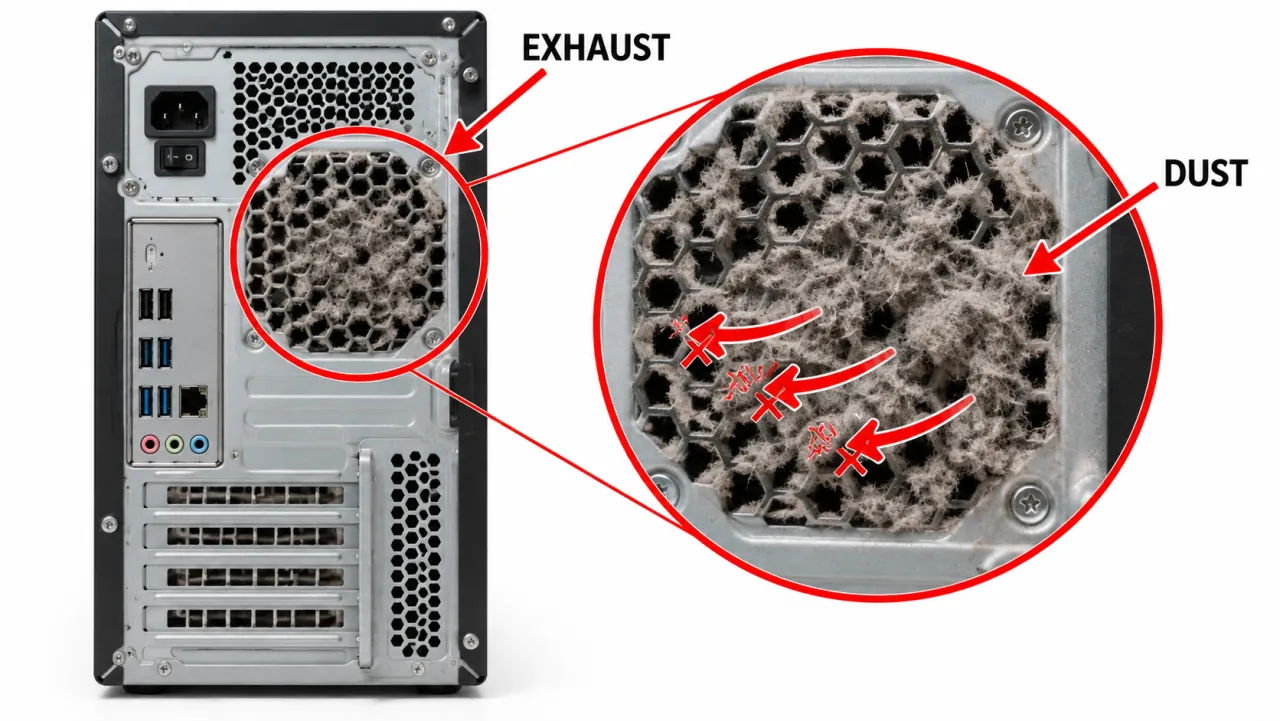
Step 3 — Confirm fans spin and read temperatures
After cleaning:
- Power on and watch CPU and case fans (and GPU fan if visible) at the BIOS splash and in Windows.
- In Windows, open Task Manager → Performance and note CPU use while idle. A stuck high-CPU process can keep fans loud even with good cooling.
- Use a reputable hardware monitor to watch CPU/GPU package temperature under a short load. Sustained readings climbing past your cooler’s normal range before shutdown support a thermal cause.
Step 4 — Cooler seating and thermal paste
If temps still spike after cleaning and fans spin:
- Power off, unplug, discharge residual power (hold the case power button ~10 seconds on a desktop).
- Reseat the CPU cooler so mounting pressure is even. A loose cooler is a classic “random thermal shutdown” cause.
- If the paste is dried, crusty, or missing coverage, clean old paste with isopropyl alcohol and apply a fresh pea-sized amount per cooler maker guidance.
Do not stack thick layers of paste. Excess paste can insulate instead of transfer heat.
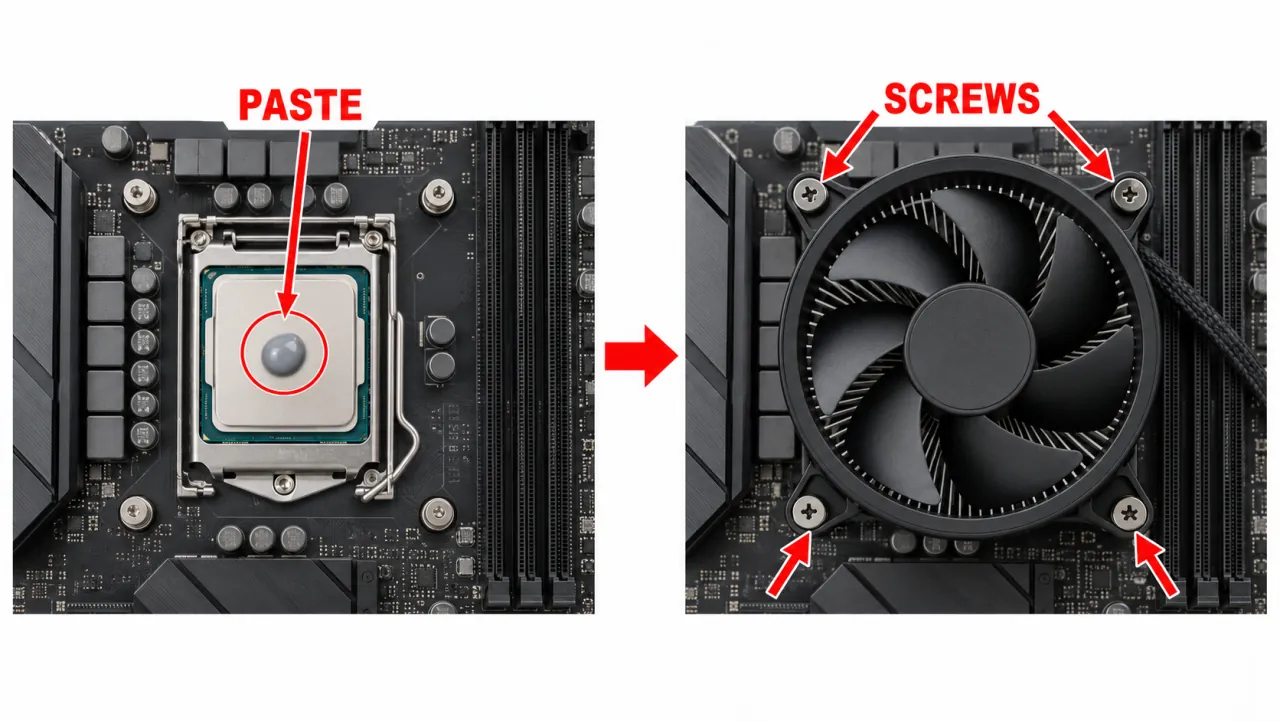
Step 5 — AIO / liquid cooler pump check
On an all-in-one liquid cooler, a dead pump looks like sudden overheating even when radiator fans spin.
- Confirm the pump power cable is on a CPU_FAN / AIO_PUMP header as the cooler manual requires.
- Feel the pump block for vibration after power-on; no vibration usually means no flow.
- Radiator orientation that traps air in the pump can cause intermittent overheating — follow the cooler vendor’s mounting diagram.
Branches
Symptom map
- PC shuts down randomly (start here)
- Check Event Viewer for Kernel-Power 41
- Overheating and thermal shutdown
- Shuts off but not overheating
- Shuts down while gaming
- Power supply keeps shutting off
- Laptop turns off without warning
- Shuts down and restarts
- Turns on then immediately shuts off
- Monitor turns off but PC stays on
- PC will not shut down
- Shut down because of a problem
FAQ
Why does my PC keep overheating and shutting off?
Thermal protection cuts power when the CPU/GPU cannot shed heat. Typical causes: blocked vents, dust on fins, failed fans, loose cooler, dried paste, or a dead AIO pump — not “Windows being random.”
Can an overheated PC be fixed?
Often yes, if you restore airflow and cooler contact. If diagnostics show a dead fan or the system still overheats after cleaning and reseating, the cooler or thermal material may need service.
My laptop is overheating and shutting down — what first?
Move it off soft surfaces, clean vents, check fan spin, then follow OEM thermal steps. Soft bedding under a laptop is a common intake block.
PC shuts down randomly but does not feel hot — is it overheating?
Not necessarily. Dell notes random shutdowns without heat can be power or battery related. Use not overheating and PSU.
Official / primary sources
- Dell — How to stop overheating and shut-down issues
- Kingston — How to handle an overheating computer
- Microsoft Answers — Overheating and shutting down thread
- Intel — Processor temperature / cooling guidance
Independent DIY troubleshooting. We do not sell one-click fix tools or host driver packs. Prefer OEM manuals for your exact model.